
Set up Pixette with Immich
Connect directly to your self-hosted Immich server. Sign in with your Immich account, no WebDAV or extra setup required.
Find your Immich server URL
Note the full address of your Immich server, including the protocol and port, for example https://immich.example.com:2283 or http://YOUR_SERVER_IP:2283. The default Immich port is 2283. HTTPS is recommended. You can use an IP address or a domain name.
Use your Immich account
Sign in with your Immich email and password, the same credentials you use to log in to the Immich web app. If you use single sign-on (SSO) and have no Immich password, you can use an API key instead.
Choose your library or albums
Pixette can play your entire Immich library or just specific albums. There's also a data-saver option that streams smaller preview images to reduce bandwidth.
Connection Details
Immich https://immich.example.com:2283 your_immich_email your_immich_password In Pixette, choose 'Immich' as the connection method, then enter these details. The default Immich port is 2283. All values are case-sensitive.
No WebDAV setup required
Pixette talks to the Immich API directly. You don't need to enable WebDAV or create a dedicated user, just sign in with your Immich account.
Whole library or by album
Browse and play your entire Immich library, or pick individual albums. Turn on the data-saver option to stream smaller preview images when bandwidth is limited.
Using single sign-on (SSO) or OIDC?
Without an Immich password, sign in with an API key. In Immich, open Account Settings, then API Keys, and create a new key with the permissions: asset.read, asset.view, asset.download, asset.statistics, album.read. In Pixette, choose "API key" under "Sign in with" and paste it.
Set Up the Pixette App #
These steps are the same for all NAS types.
Configure Pixette
Open Pixette on your device and enter the connection details: URL, username, and password. All values are case-sensitive.
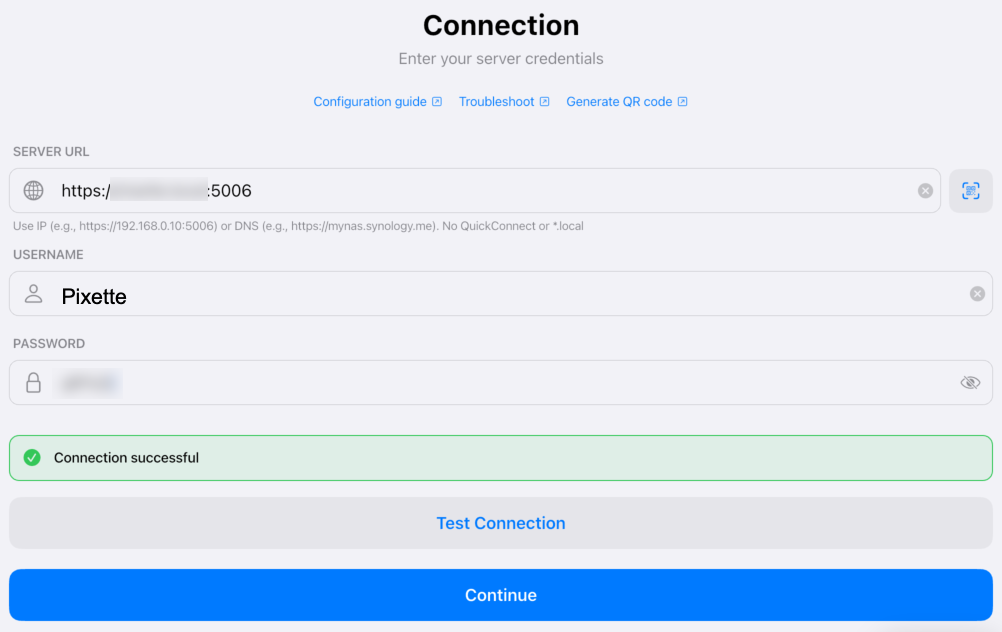
Browse and select folders
Tap 'Connect and browse folders', then select the folder containing your photos.
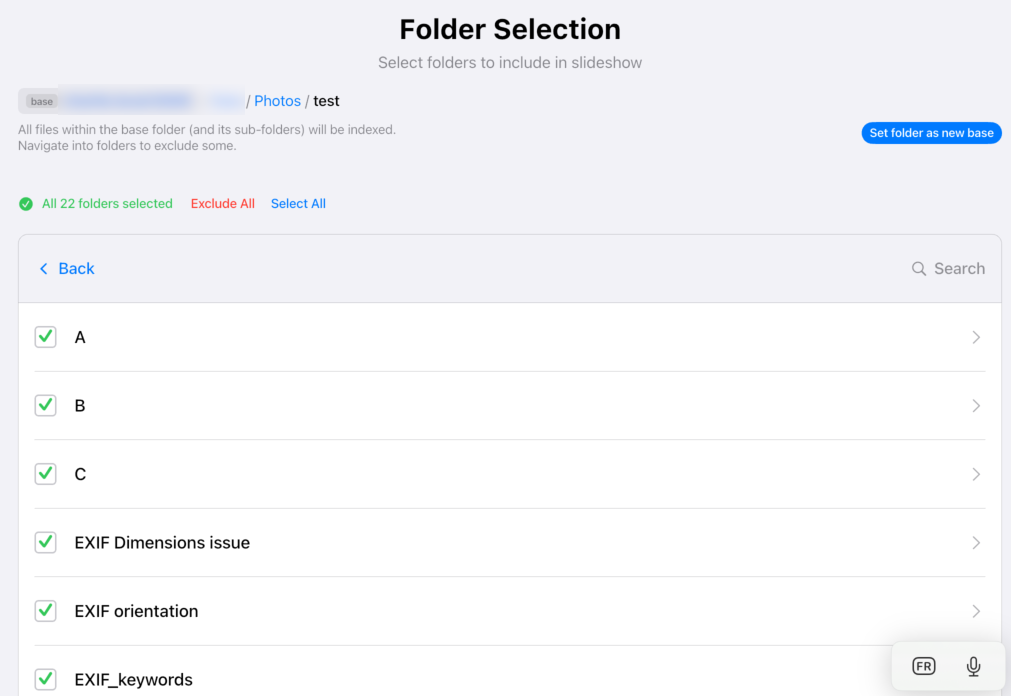
Index your files
Tap 'Index Now' to catalog all your photos and videos. This may take a few minutes depending on your collection size.
Don't have Pixette yet?
Download it free on your tablet, phone or TV, then come back to connect your Immich library.
Setting up a TV?
Connect Pixette on your phone first, with the guide for your NAS. Then open Pixette on your Apple TV or Android TV, choose Set up from your phone, and scan the QR code it shows with the phone. No typing with the remote. How TV setup works
Quick Setup with QR Code
Skip manual typing. Generate a QR code with your NAS connection details and scan it with Pixette for instant configuration. Perfect for setting up multiple devices like photo frame tablets.
Secure and open source. Your credentials never leave your browser. The generator runs entirely client-side. View the source code for full transparency.
Can't see the generator? Open it directly on CodePen
Prefer manual entry? You can also generate QR codes with any standard QR library. Format the data as pipe-separated values: host|port|username|password|path
Troubleshoot WebDAV Connection #
If you're having trouble connecting Pixette to your NAS via WebDAV, try these steps. Connecting with Synology Photos instead? Make sure you're on DSM 7.0 or later, the Synology Photos package is installed, and the account you're signing in with does not have two-factor authentication (2FA) enabled.
1. Check that the URL is case-sensitive
WebDAV URLs are case-sensitive. Double-check every character, including folder names. For example: https://192.168.1.100:5006/Photos/Family
2. Test the connection from a computer first
Try connecting to your NAS via WebDAV from your computer using the exact same URL, username, and password. If your computer can't connect either, the issue is with your NAS configuration, not Pixette.
3. Use simple credentials for testing
Avoid special characters (like & £ @ #) in your password during initial setup. Use only letters and numbers until the connection works, then change to a stronger password.
4. Check if your IP is blocked
On Synology, go to Control Panel → Security → Account → Auto Block and verify that your device's IP address hasn't been blacklisted after failed login attempts.
5. Check the firewall and port
If the NAS firewall is enabled, make sure the WebDAV port (e.g. 5006) is allowed. Ensure your device is on the same local network as your NAS.
6. Check the WebDAV Server logs
On Synology, open the WebDAV Server package from Package Center to view logs. These logs often reveal the root cause of connection failures (wrong credentials, permission denied, etc.).
Still stuck? Contact me. I'm happy to help you troubleshoot.
 Synology Photos
  SMB / CIFS
  Apple Photos
  Jellyfin
  Plex
Plex  Microsoft OneDrive
  QNAP
QNAP  Nextcloud
  ownCloud
  Seafile
  TrueNAS
  Unraid