
Set up Pixette with Microsoft OneDrive (beta)
Play the photos and videos in your personal OneDrive. Sign in with your Microsoft account, no NAS or server needed.
Choose OneDrive in Pixette
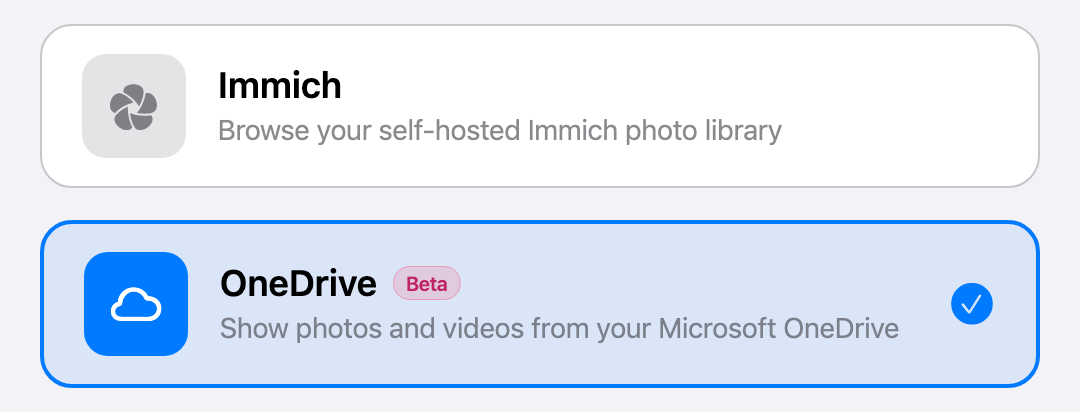
Open Pixette and choose 'OneDrive' as the connection method. It is marked Beta. On Apple TV or Android TV, do this on the TV itself: a OneDrive connection can't be sent from your phone, and the sign-in in the next step is made for TVs.
Sign in with Microsoft
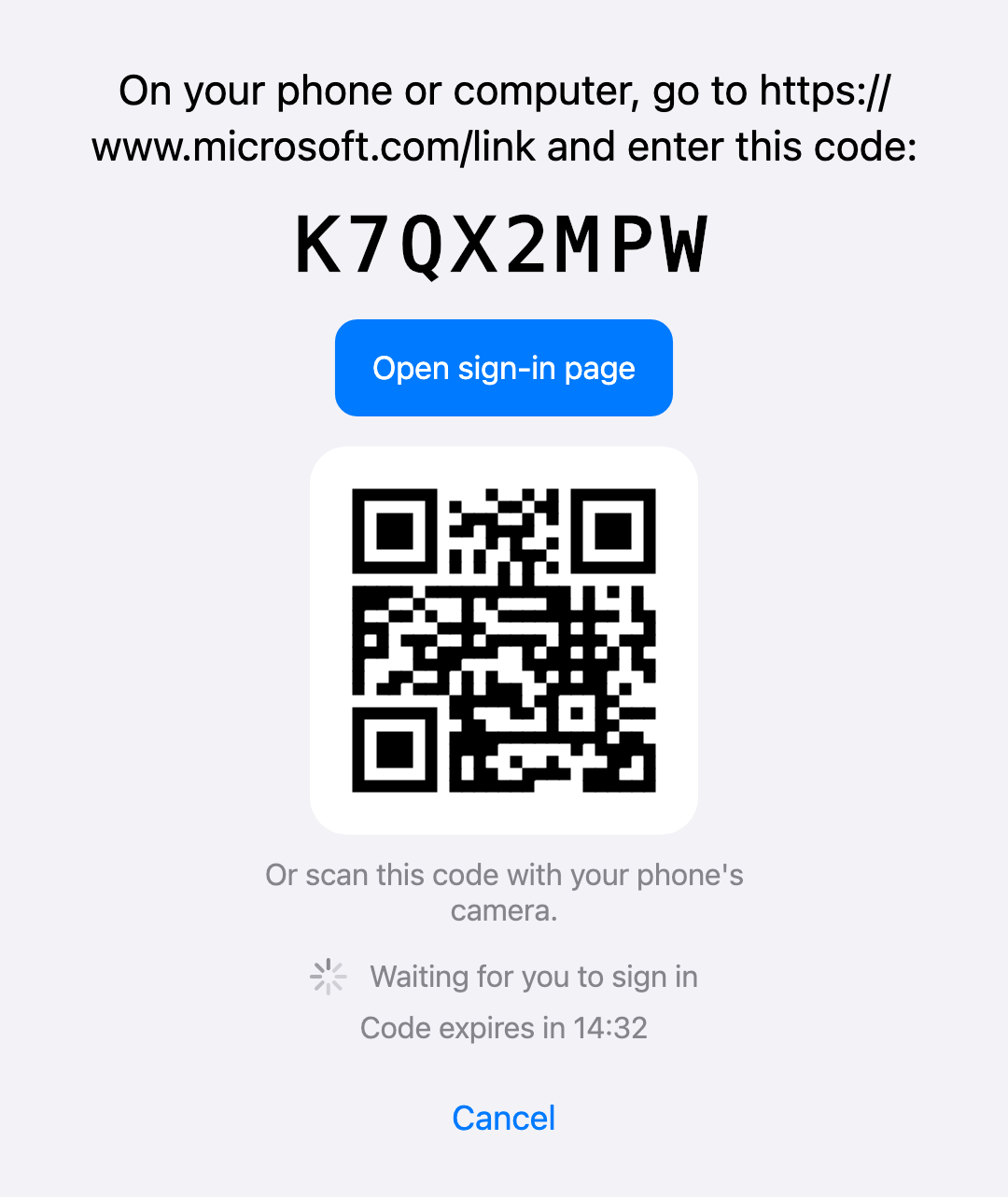
Tap 'Sign in with Microsoft'. Pixette shows a short code and a QR code. On your phone or computer, open microsoft.com/link (scanning the QR code opens it too), enter the code and sign in with your Microsoft account. On a phone or tablet, 'Open sign-in page' opens it on the same device. The code is valid for 15 minutes, and 'Get a new code' gives you another one.
Allow read access
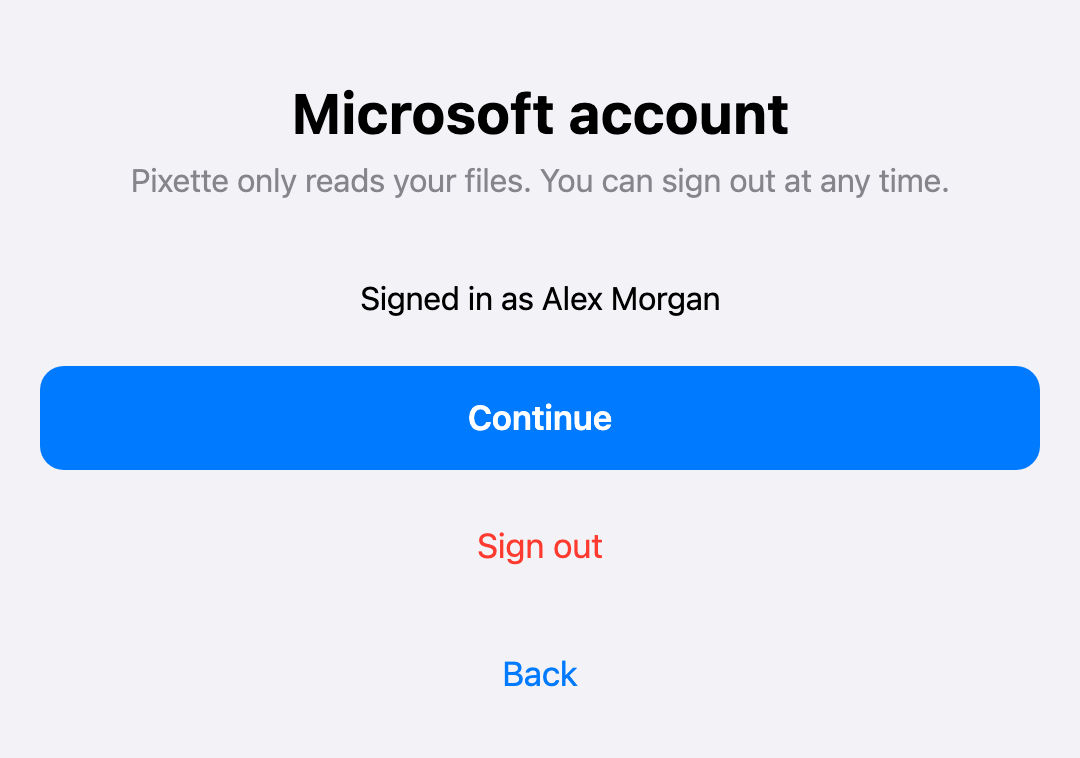
Microsoft asks whether Pixette may read your files. Accept. Pixette only reads: it never uploads, changes or deletes anything in your OneDrive. Back in Pixette, the screen shows 'Signed in as' with your name. Tap Continue.
Pick your photo folder
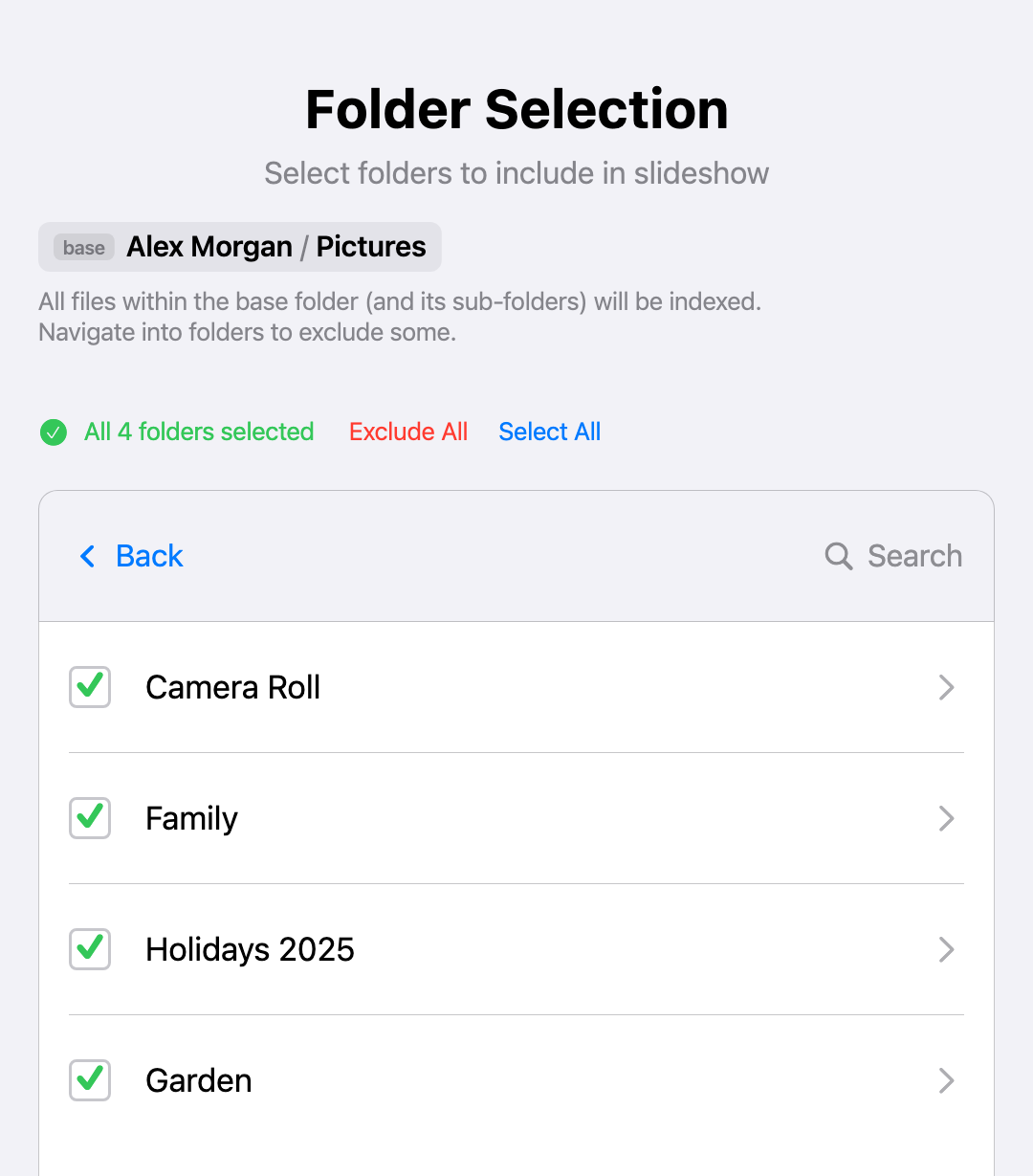
Browse your OneDrive to the folder with your photos, for example Pictures, and choose 'Set folder as new base' to play only that folder and its subfolders. Then tap Done.
Let Pixette index your library
Pixette now lists your photos and videos in the background. A large library can take a few minutes the first time. Then your slideshow is ready.
No typing on a TV
Apple TV and Android TV show the code and the QR code on screen. Scan it with your phone, sign in there, and the TV connects by itself. Your password never goes through the remote.
Fast loading
Turn on Fast loading in Pixette's settings to show OneDrive's ready-made thumbnails instead of full originals. Photos appear faster and use less data, at a lower quality on large screens.
Work or school account?
Only personal Microsoft accounts (outlook.com, hotmail.com, live.com) are supported for now. Work and school accounts from Microsoft 365 for business can't sign in.
OneDrive is in beta
OneDrive support is new. If something doesn't work as expected, tell us through the feedback form in the app.
Don't have Pixette yet?
Download it free on your tablet, phone or TV, then come back to connect your Microsoft OneDrive library.
 Synology Photos
  Immich
  SMB / CIFS
  Apple Photos
  Jellyfin
  Plex
Plex  QNAP
QNAP  Nextcloud
  ownCloud
  Seafile
  TrueNAS
  Unraid